Setting up IPTV on a television no longer needs to be a headache, even if you have never touched a set-top box before. Whether you have picked up an Android TV Box, a Fire Stick, or you simply want to run everything through your existing Smart TV, the process follows a similar logical path. This guide walks you through the practical steps of getting your service connected, keeping your connection stable, and sorting out the little hiccups that tend to crop up along the way.
In short
- IPTV technology delivers television content via broadband by using compatible devices like Android TV boxes, Fire Sticks, or Smart TVs as bridges.
- Setting up IPTV typically involves installing a dedicated player app and configuring it using an M3U playlist link or a portal address provided by your service.
- Smart TVs allow for direct IPTV streaming without external hardware, though dedicated boxes often offer better long-term software flexibility and update frequency.
- A stable, high-speed internet connection is essential for high-definition streaming, with wired Ethernet connections generally providing superior performance compared to Wi-Fi.
- Performing a network speed test before subscribing helps ensure your bandwidth can support the required data loads for consistent, non-buffered playback.
- Many common IPTV issues, such as connection errors, can be resolved by verifying that input URLs and portal addresses are entered correctly and the app is updated.
- Using a reliable VPN can enhance privacy and security for IPTV streaming, provided the server location is chosen carefully to avoid impacting connection speeds.
Getting started: connecting your iptv service to various smart devices
Before diving into any particular gadget, it helps to understand that IPTV essentially delivers television channels over your broadband line rather than through satellite or aerial signals. This means the device you choose acts as a bridge between your subscription and your screen. Popular options include the Android TV Box, Linux-powered units such as those built around MAG models, and manufacturers like Infomir, a well-known European maker of Linux and Android powered set-top boxes. These boxes are often sold alongside accessories, and many retailers also offer wholesale set-top options for those wanting to equip multiple rooms or resell units.
Setting Up IPTV on Fire Stick and Android TV Boxes
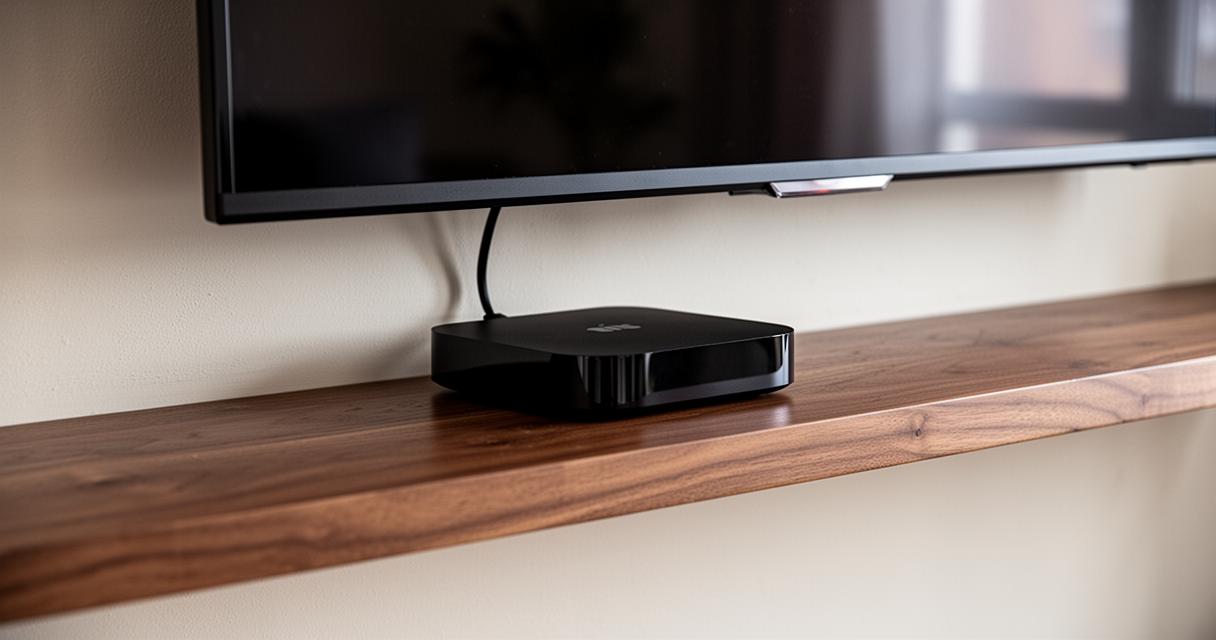
For an Amazon Fire Stick or any Android TV Box, the process usually starts with searching the relevant app store for your IPTV player of choice. Once installed, you will typically be asked to enter either an M3U playlist link or a portal address supplied by your provider. Double-checking these details before finalising the setup saves a lot of frustration later. Many boxes running Android also support additional apps, giving you flexibility beyond just live channels, whilst Linux TV Box models tend to favour a more streamlined, dedicated interface built purely for IPTV playback.
Configuring IPTV on Chromecast and Apple TV Devices
Chromecast users generally cast content from a mobile app or browser tab directly to the television, which means the heavy lifting happens on your phone or laptop rather than the device itself. Apple TV owners, on the other hand, can search the App Store for a compatible IPTV application and follow a similar configuration routine involving playlist URLs. Regardless of platform, it is worth checking platform compatibility before purchasing any subscription, since not every service supports every device equally well.
It is also worth mentioning that a genuine Smart TV, used without any separate box at all, is a viable route too. There is a straightforward guide available for setting up IPTV directly on a Smart TV, and the appeal is obvious: you save both space and money by skipping an extra piece of hardware, provided your internet connection is stable enough to cope. The installation process mirrors what happens on a streaming stick, involving searching an app store, installing the chosen player, and configuring the settings with your provider’s details. That said, Smart TVs can come with a higher initial cost and tend to receive software updates less frequently than dedicated boxes, so it pays to weigh convenience against long-term flexibility.
Ensuring a Stable Internet Connection for Optimal Streaming Quality
No amount of clever app configuration will help if your underlying broadband cannot keep pace with the demands of streaming. IPTV relies heavily on consistent bandwidth, and even brief dips can cause frozen frames or pixelated pictures at the worst possible moment.
Minimum broadband requirements and network speed testing
Running a quick speed test before you commit to a subscription gives you a realistic picture of what your household connection can actually handle, particularly if several people are streaming or gaming simultaneously. Providers often recommend a baseline speed for standard definition channels and considerably more for high definition or ultra high definition content. If your results consistently fall short, it might be worth contacting your internet supplier before blaming the IPTV service itself.
Wired versus wireless connections: choosing the best option
Wherever practical, connecting your set-top box or Smart TV directly via an ethernet cable will outperform Wi-Fi, particularly in homes with thick walls or several competing devices. Wireless connections are undeniably more convenient, but they are also more susceptible to interference and signal drop-off. If Wi-Fi is your only option, positioning your router closer to the television, or investing in a mesh system, can noticeably improve reliability.
Configuration and troubleshooting: resolving common iptv issues
Even a well-planned setup occasionally throws up problems, and knowing where to look first can save considerable time and irritation.
Verifying M3U URLs and Portal Addresses for Proper Setup
A surprising number of streaming issues trace back to a simple typo in the M3U link or portal address. It is worth copying these details carefully rather than typing them from memory, and confirming with customer support that the address is still active, since providers occasionally update their servers. Checking that your app installation is the latest version available is another easy win, as outdated apps sometimes struggle to parse newer playlist formats.
Beyond the basics, some viewers choose to run their streaming setup behind a VPN for added privacy, particularly given ongoing concerns around surveillance and censorship in certain regions. A reliable VPN offering a strict no logs policy, strong encryption, and features such as a dedicated IP or built-in antivirus protection can add a useful layer of security without noticeably affecting playback, provided the server chosen is reasonably close by. Some services even support installation on a VPN router, covering every device on the network at once, which is handy for households juggling multiple boxes and smart devices.
Fixing buffering problems and connection errors
Persistent buffering is usually down to one of three culprits: insufficient bandwidth, an overloaded router, or a struggling provider server. Restarting your router, temporarily pausing other bandwidth-heavy activities, and switching to a wired connection are all sensible first steps. If problems persist across multiple channels or apps, it is worth reaching out to operator support, since retailers offering warranty cover and dedicated help desks can often diagnose hardware faults that are otherwise easy to miss. For those shopping around, many suppliers deliver across the whole of Europe, accept payment by card or PayPal, and even maintain a separate US store, with special offers regularly bundled around popular MAG models. Signing up to a newsletter is often the easiest way to catch these deals as they appear, alongside broader privacy news covering topics like cybersecurity and encryption that any streaming enthusiast should keep half an eye on.