Keeping your Samsung Galaxy in sync with your Windows PC has never been more straightforward, yet many users remain unsure of the best approach for their particular needs. Whether you are looking to transfer photos, manage files, or mirror notifications directly on your desktop, there are several reliable methods available. This guide walks you through the most effective ways to establish a solid connection between your Android device and your computer, covering both wired and wireless options.
In short
- Using a USB cable remains the most reliable and fastest method for transferring large files, provided you select the correct MTP mode on your phone.
- Windows File Explorer allows users to manage Samsung Galaxy files and photos directly by treating the phone as an external storage device.
- The ‘Link to Windows’ application enables a seamless wireless connection for managing photos, messages, and notifications via the same Wi-Fi network.
- Linking your Samsung device with Microsoft’s Phone Link application requires a simple QR code pairing process and a shared Microsoft account.
- Wireless integration via Link to Windows allows you to view mobile notifications, reply to messages, and manage calls directly from your desktop.
- Bluetooth offers a convenient, cable-free solution for transferring small files like documents or contacts, though it is slower than USB or Wi-Fi methods.
Establishing a Link via USB Cable for File Transfer
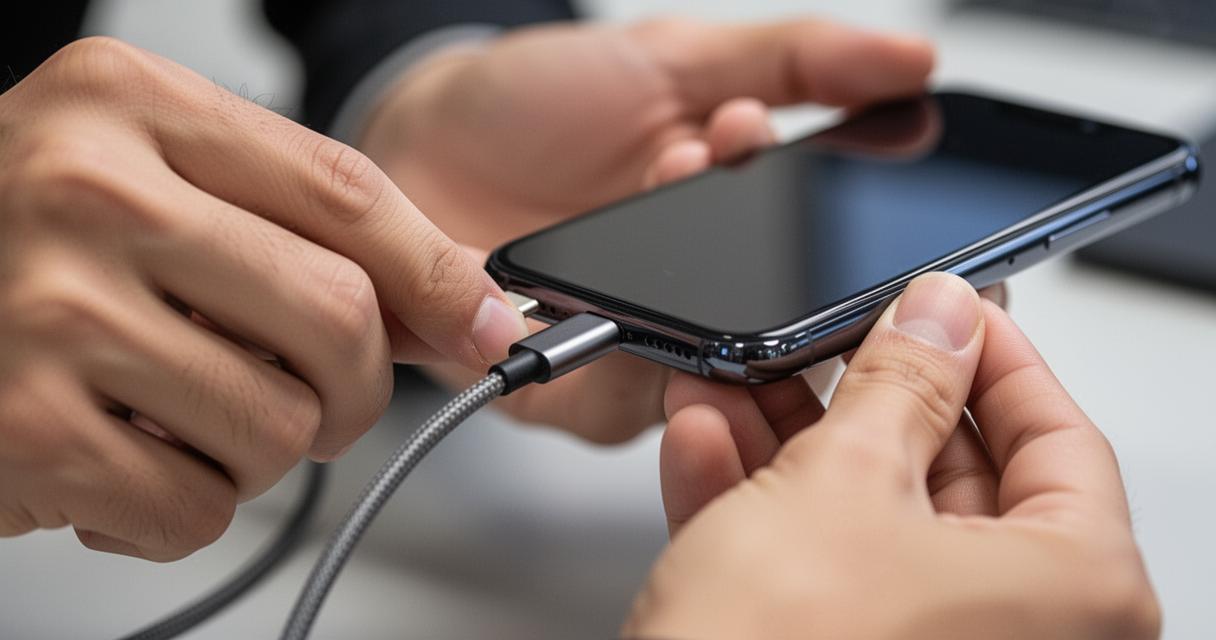
The most dependable way to connect a Samsung Galaxy to a PC remains the trusty USB cable. It is worth noting that simply plugging the cable in is only the first step — the way you configure the connection on your phone determines what your computer can actually access. Once you plug in the cable, your Samsung device will prompt you to choose a connection type, and selecting the right option is essential for smooth data transfer.
Configuring usb settings on your android device
After connecting your Galaxy phone to your Windows computer via a USB cable, a notification will appear in the status bar of your Android device. Tapping on this notification opens a menu where you can select the purpose of the connection. For most users wanting to move files, choosing File Transfer or MTP mode is the most practical route. This setting tells the computer to treat the phone as an external storage device, granting full access to the internal memory. If you only need to transfer photos, there is a dedicated photo transfer mode, sometimes labelled PTP, which works particularly well with Windows Photo tools. It is always a good idea to check that your USB cable supports data transfer and is not simply a charging cable, as many budget cables are wired for power only.
Managing Photos and Files on Your Windows Computer
Once your Samsung phone is connected in file transfer mode, Windows will automatically detect the device and it will appear under This PC in File Explorer. From there, you can browse the internal storage and any SD card installed in the device, copying or moving files just as you would with any external drive. Photos are typically stored in the DCIM folder, making it easy to locate and back up your camera roll. For larger data transfers, a USB connection offers a considerably faster flow than wireless alternatives, which is particularly useful when moving high-resolution videos or bulk photo libraries. Managing your files through Windows Explorer in this manner gives you full control over the organisation of your data without needing any additional application.
Utilising the Link to Windows Application for Wireless Flow
For users who prefer a cable-free experience, Samsung has built deep integration with Microsoft’s Link to Windows application directly into the Galaxy range. This feature allows your phone and PC to communicate over your local Wi-Fi network, providing a seamless wireless flow of information between the two devices. The application comes pre-installed on most modern Samsung Galaxy handsets, making setup relatively painless.
Connecting Your Samsung Phone and PC with Microsoft Services
To get started, open the Link to Windows application on your Samsung device — it is usually found in the quick settings panel by swiping down from the top of the screen. On your Windows computer, open the Phone Link application, which is included with Windows. You will be asked to sign in with a Microsoft account on both devices to establish the link. Once signed in, a QR code will appear on your PC screen; scanning this with your Samsung phone completes the pairing process. The connection relies on both devices sharing the same Wi-Fi network, so ensure that your phone and computer are connected to the same router for the most stable link. This Microsoft-powered solution supports photo browsing, messaging, and even the ability to run certain Android applications directly on your computer screen.
Accessing Mobile Notifications from the Task Bar
One of the most practical benefits of the Link to Windows application is the ability to view and respond to your mobile notifications from the Windows task bar. When your Samsung Galaxy and PC are connected wirelessly, incoming messages, calls, and app alerts appear as pop-ups on your desktop, allowing you to stay on top of your phone without picking it up. You can reply to messages, dismiss notifications, and even manage calls directly from your computer. This is particularly useful during work sessions when your phone is tucked away. The task bar integration also shows your phone’s battery level and signal strength, giving you a live overview of your device’s status at a glance.
Enabling bluetooth connection for quick mobile pairing
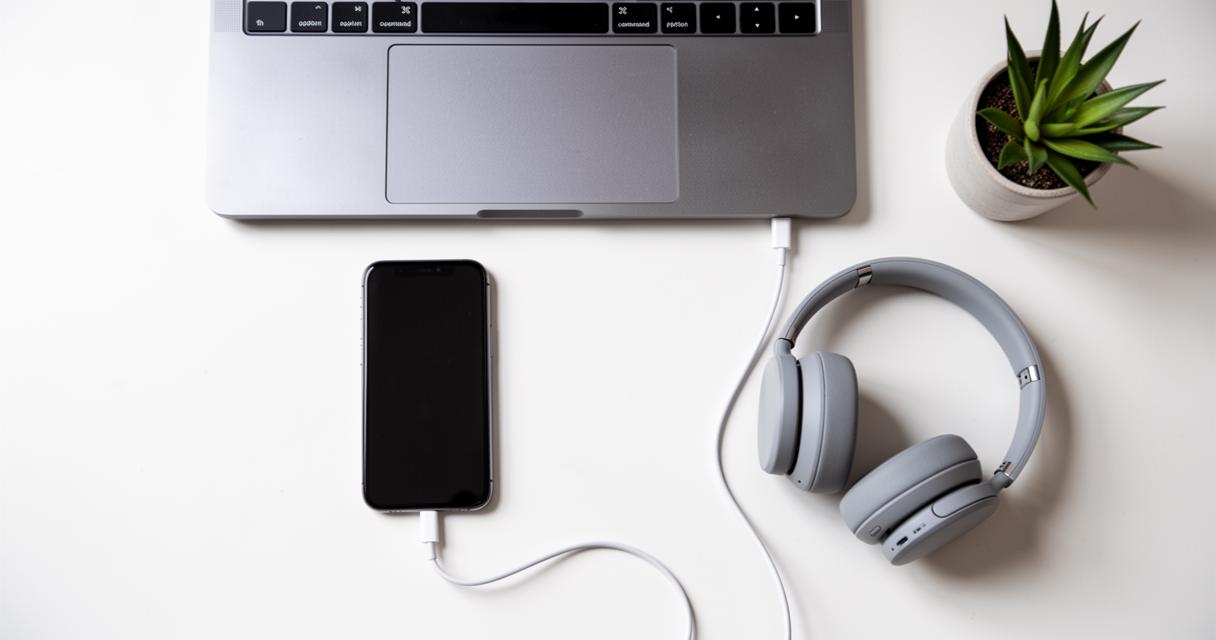
Bluetooth offers yet another route for connecting your Samsung Galaxy to a Windows PC, and while it is best suited to smaller transfers or peripheral pairing rather than bulk data moves, it remains a convenient and universally supported option. Most modern computers include Bluetooth as standard, and the pairing process is managed entirely through the system settings on both devices.
How to Search and Pair Bluetooth Devices in System Settings
To initiate a Bluetooth connection, navigate to Settings on your Windows computer, then select Devices, followed by Bluetooth and other devices. Ensure that Bluetooth is toggled on, then click Add a device. On your Samsung Galaxy, open Settings, tap Connections, and then Bluetooth, making sure it is enabled. Your phone will begin to search for available devices in range. When your PC appears in the list on your Samsung device, tap its name to initiate pairing. Windows will display a confirmation code, which should match the code shown on your Android phone — confirm on both sides to complete the connection. Once paired, the two devices will remember each other and reconnect automatically in future sessions when Bluetooth is active on both.
Securing a Stable Wireless Connection for Small Transfers
Bluetooth is well suited to transferring smaller files such as documents, contacts, or individual photos between your Samsung phone and your PC. To send a file via Bluetooth, right-click the file on your computer and select Send to, then choose the Bluetooth device corresponding to your Galaxy handset. On your Samsung, accept the incoming transfer prompt when it appears. For the most stable Bluetooth connection, keep the two devices within close proximity and avoid environments with significant wireless interference. It is worth noting that Bluetooth transfer speeds are slower than either USB or Wi-Fi methods, so it is best reserved for quick, occasional transfers rather than large data syncing tasks. Nevertheless, for a simple, cable-free way to move a handful of files or pair accessories, Bluetooth remains a perfectly reliable solution for connecting your Samsung Galaxy to a Windows computer.