Creating a bootable USB stick has become an essential skill for anyone who needs to install or repair operating systems on their computers. Rather than relying on traditional optical drives, which can be slow and cumbersome, modern users often turn to USB drives for a faster and more convenient installation experience. The process involves using built-in Windows utilities such as the Command Prompt and the DISKPART tool to prepare a USB stick so that it can be recognised by a computer's boot system. This guide walks you through each stage of the process, ensuring that you understand the necessary steps and precautions to take before embarking on this technical task.
Preparing your usb drive: essential pre-formatting considerations
Before you begin the process of making your USB drive bootable, it is crucial to take a moment to consider the implications of formatting. Formatting a drive erases all existing data, so safeguarding your information is an important first step. Understanding the compatibility requirements and system specifications will also ensure that your bootable USB drive functions correctly once it is prepared. These preliminary considerations can save you time and prevent the frustration of discovering that your drive is not ready or that important files have been lost.
Safeguarding your data: backing up before you begin
One of the most vital steps in preparing a USB drive for bootable use is ensuring that any data currently stored on the drive is backed up. When you format the drive using the Command Prompt and DISKPART tool, all existing files and folders will be permanently removed. It is advisable to transfer any important documents, photos, or other files to another storage device or cloud service before proceeding. This precaution not only protects your data but also gives you peace of mind as you follow the subsequent steps. Taking the time to back up your files is a simple yet essential measure that prevents irreversible data loss during the disk management process.
Understanding usb drive compatibility and system requirements
Another key consideration is the compatibility of your USB drive with the operating system you intend to install. For instance, a bootable USB drive created for Windows 7 installation typically requires a minimum capacity of four gigabytes to accommodate the contents of the installation DVD. It is important to verify that your USB stick meets this requirement before you begin. Additionally, the chosen format, often FAT32 format, may have file size limitations that could affect the transfer of larger files. Ensuring that your USB drive is compatible with Windows 7 or later versions is also necessary, as earlier operating systems may not recognise the bootable partition correctly. Understanding these system requirements helps to avoid potential issues during the installation process and ensures a smooth transition from preparation to deployment.
Creating a Bootable USB Drive Using Command Prompt and Diskpart
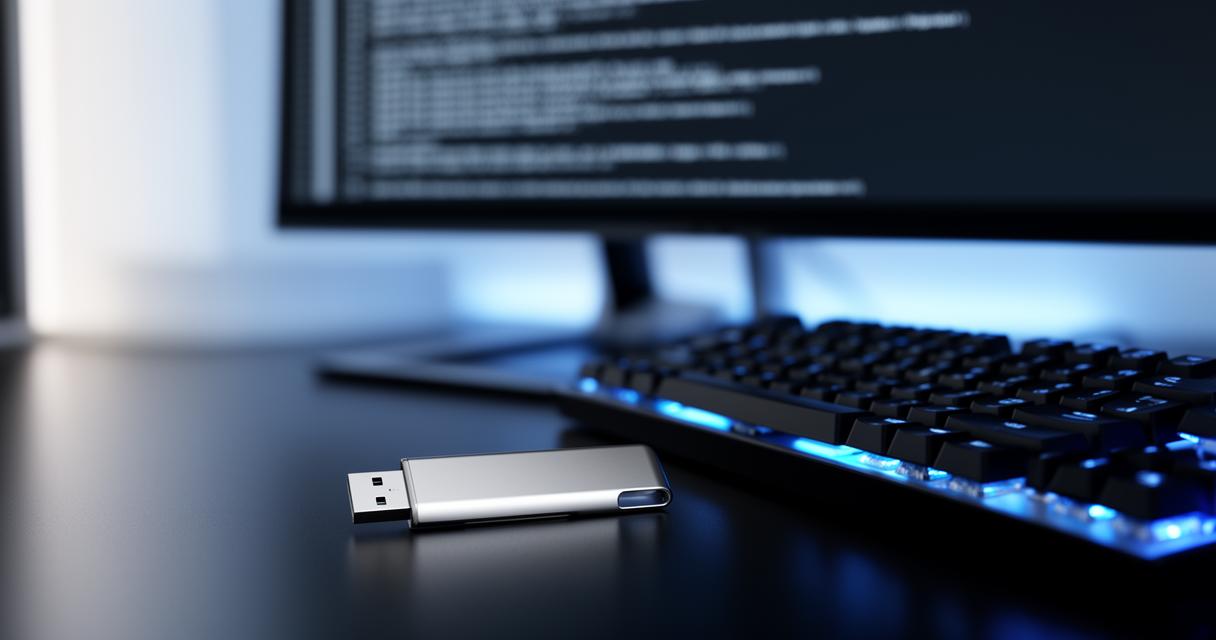
Once you have taken the necessary precautions and verified your USB drive's compatibility, the next phase involves using the Command Prompt to access the DISKPART tool. This powerful utility allows you to manage disk partitions and format the USB drive in a way that makes it bootable. The process requires careful attention to detail, as each command must be executed in sequence to ensure that the primary partition is created and activated correctly. By following the outlined steps, you can transform an ordinary USB stick into a reliable bootable device that speeds up the installation process significantly.
Accessing diskpart through the command prompt interface
To begin, you need to open the Command Prompt with administrative privileges. This can typically be done by searching for Command Prompt in the start menu, right-clicking on the application, and selecting the option to run as an administrator. Once the Command Prompt window is open, you can type the command to launch the DISKPART tool. Entering this command grants you access to a range of disk management functions that are essential for preparing your USB drive. It is important to ensure that you are working within the correct interface, as the commands you issue will directly affect the selected disk and its partitions. Taking care to follow each instruction precisely will help you avoid errors that could render the USB drive unusable or result in the loss of data.
Selecting Your USB Device and Establishing a Bootable Partition
After accessing DISKPART, the next step involves listing all available disks and selecting the correct USB drive. This is a critical moment in the process, as selecting the wrong disk could lead to unintended formatting of another storage device. Once you have identified and selected your USB drive, you will need to clean the disk to remove any existing partitions. Following this, you create a primary partition on the drive, which will serve as the foundation for the bootable setup. Setting this partition to active is essential, as it signals to the computer's BIOS that the USB drive is a valid boot device. Formatting the partition using the FAT32 format is the subsequent step, and this format is generally preferred for compatibility with a wide range of operating systems. Finally, assigning a drive letter to the newly formatted partition ensures that the USB stick is recognised by the system when you copy the installation files onto it. Each of these steps must be performed methodically to create a fully functional bootable USB drive that meets the technical requirements for installation speed and reliability.
Testing and deploying your bootable usb stick
With the bootable USB drive now prepared, the final stage involves testing its functionality and troubleshooting any issues that may arise during deployment. Ensuring that the USB stick works correctly on your computer system is essential before you rely on it for a critical installation. This phase also provides an opportunity to familiarise yourself with common boot issues and partition errors, so that you can address them swiftly should they occur. A thorough testing process confirms that the bootable USB drive will perform as expected when you need it most.
Verifying the Bootable USB Functionality on Your Computer System
Once you have completed the formatting and partitioning process, it is important to test the bootable USB drive on the target computer system. To do this, insert the USB stick into an available port and restart your computer. During the boot sequence, you may need to access the BIOS or boot menu by pressing a designated key, which varies depending on the manufacturer. Selecting the USB drive as the primary boot device will allow the system to load the installation files from the stick. If the process proceeds smoothly and the installation interface appears, it confirms that your bootable USB drive has been created successfully. Many users have reported that using a bootable USB drive for installation is significantly faster than relying on traditional optical media, with some installations completing in under seven minutes on certain computer models. This improved installation speed is one of the key benefits of adopting this method, and it demonstrates the efficiency of using Command Prompt and DISKPART tool for disk management tasks.
Troubleshooting common boot issues and partition errors
Despite following the outlined steps carefully, you may occasionally encounter issues when attempting to boot from the USB drive. Common problems include the computer not recognising the USB stick, partition errors, or file size limitations associated with the FAT32 format. If the system fails to detect the bootable partition, it may be necessary to revisit the DISKPART commands and ensure that each step was executed correctly. Verifying that the partition was set to active and that the formatting was completed using the correct file system can often resolve these issues. In some cases, alternative installation methods may need to be considered, particularly if the USB drive is being used with an operating system that does not fully support the FAT32 format for larger files. Reviewing user feedback and technical tutorials can also provide valuable insights into potential pitfalls and solutions. Many individuals who have successfully created bootable USB drives have shared their experiences online, offering tips on overcoming obstacles and ensuring that the process runs smoothly. By being prepared to troubleshoot common issues, you can confidently deploy your bootable USB stick and enjoy the benefits of faster and more reliable operating system installations.